
IIDXOLLER Options Manual
IIDXOLLER Options Manual
Section titled “IIDXOLLER Options Manual”1. IIDXOLLER Options Overview
Section titled “1. IIDXOLLER Options Overview”Software created by the DAOdesign team based on years of experience.
If you encounter any issues during use, or if you have other suggestions, please contact us via email or Twitter. We will continue improving it actively.
Multiple modes are preset, and different parameters can be configured for each mode, making it convenient and efficient to use.
2. Download
Section titled “2. Download”3. How to Flash the Firmware
Section titled “3. How to Flash the Firmware”- You can connect the USB type-B cables of two PHOENIXWAN Entry Model units at the same time.
- Select 1P or 2P from the drop-down menu.
- Click the Open Firmware button.
- In the folder, select the
SS900_PHOENIXWAN-Entry-Model_xxxxx.skystarfirmware file. - Click the Flash Firmware button.
- Done.
4. User Guide
Section titled “4. User Guide”IIDXOLLER Options provides powerful parameters that can be customized according to your own preferences.
With all default settings, it already works for most IIDX games.
4.1 Software Interface
Section titled “4.1 Software Interface”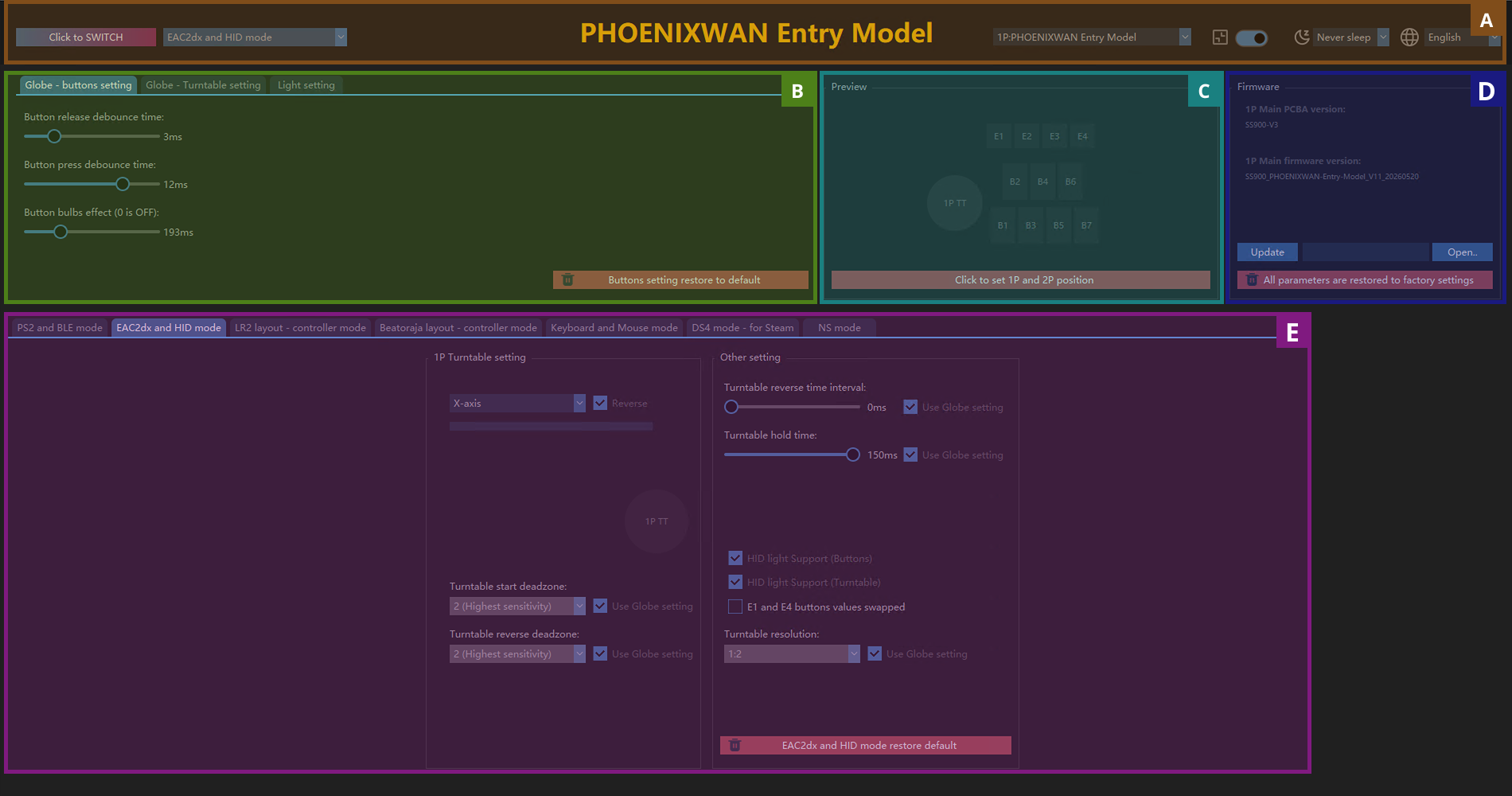
| Item | Description |
|---|---|
| A | Mode switching, sleep, language |
| B | Global function settings |
| C | Preview window |
| D | Firmware preview, firmware flashing |
| E | Mode settings |
4.2 Mode Switching, Sleep, Language
Section titled “4.2 Mode Switching, Sleep, Language”
| Item | Description |
|---|---|
| A1 | Mode switch button. Select A2, then click the button to apply it. |
| A2 | Mode list |
| A5 | Ignore Windows display scaling. If Windows is set to 125%, 150%, or 200%, it can be forced to display at 100%. |
| A6 | Sleep function. After setting it, the PHOENIXWAN Entry Model will turn off all lights after 1 to 10 minutes. Press any key or rotate the turntable to restore the lights. |
| A7 | Select your preferred language. languagepack.xml can be edited freely to add any language you prefer. |
| A8 | Select the 1P or 2P device. |
4.3 Global Function Settings
Section titled “4.3 Global Function Settings”4.3.1 Global - Button Settings
Section titled “4.3.1 Global - Button Settings”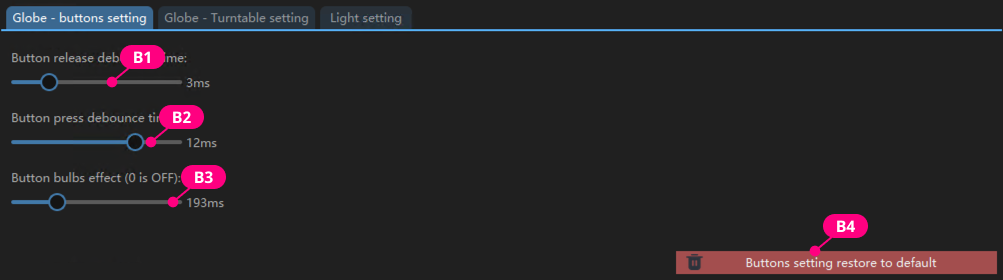
| Item | Description |
|---|---|
| B1 | The debounce time when the microswitch is released. The default value of 3ms is recommended. If VX-01-1C22 or VX-01-1C23 switches show multiple inputs, increasing this value slightly may help reduce it. |
| B2 | The debounce time when the microswitch is pressed. The default value of 10ms is recommended. If VX-01-1C22 or VX-01-1C23 switches show multiple inputs, increasing this value slightly may help reduce it. |
| B3 | How long the key light takes to turn off after the button is released. Usually 0-200ms is recommended. |
| B4 | Restore the factory default button settings. |
4.3.2 Global - Turntable Settings
Section titled “4.3.2 Global - Turntable Settings”It may look a little complicated, but in practice the most commonly adjusted values are B7 and B8.
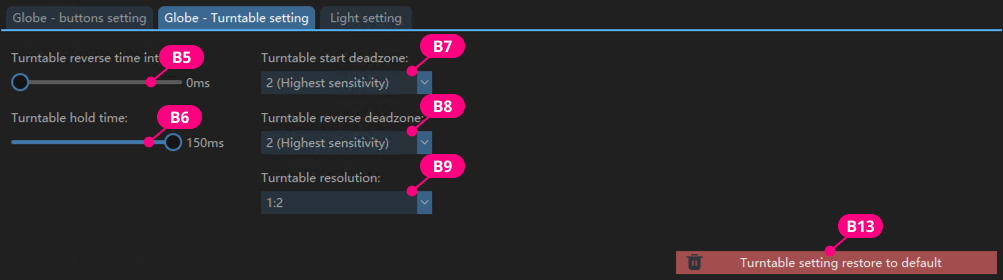
| Item | Description |
|---|---|
| B5 | The reverse interval of the turntable. Only in EZ2ON, when the turntable is set to output 2 key values, this should be set to 8ms or higher. Otherwise, high-speed turntable movement in EZ2ON may lose inputs. The default value of 0ms is recommended. |
| B6 | The recommended value is 20 to 100ms. The smaller the value, the faster you need to move the turntable to trigger it. The larger the value, the slower the turntable can move and still trigger it. The default value of 50ms is recommended. |
| B7 | This can be understood as sensitivity. The smaller the value, the higher the sensitivity. The value represents how much the turntable needs to rotate before output is generated. The default value of 6 is recommended, and you can fine-tune it based on your own feel. Scratch-heavy players can set it to 2. |
| B8 | This can be understood as reverse sensitivity. The smaller the value, the higher the sensitivity. The value represents how much the turntable needs to rotate before reverse output is generated. The default value of 4 is recommended, and you can fine-tune it based on your own feel. Scratch-heavy players can set it to 2. |
| B9 | When using 1:2, a lower turntable speed can trigger fast scrolling in the song select menu. When using 1:4, a higher turntable speed is required to trigger fast scrolling. The default value of 1:4 is recommended. |
| B13 | Restore the factory default turntable settings. |
4.3.3 Global - Lighting Settings
Section titled “4.3.3 Global - Lighting Settings”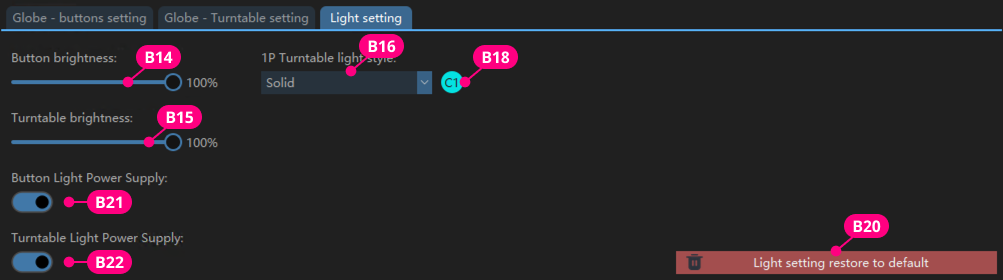
| Item | Description |
|---|---|
| B14 | Set the brightness of the button lights. |
| B15 | Set the brightness of the turntable light. |
| B16 | Select the turntable lighting effect. |
| B18 | Click C1 or C2 to set the corresponding turntable light color. Rainbow mode cannot be customized. |
| B20 | Restore the factory default lighting settings. |
| B21 | Button light switch. |
| B22 | Ring light switch. |
4.4 Preview Window
Section titled “4.4 Preview Window”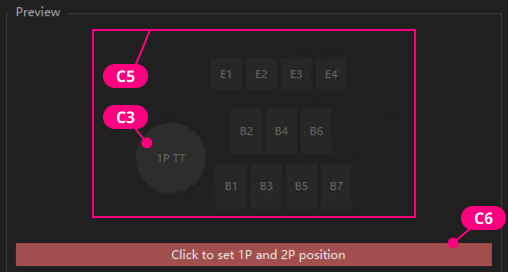
| Item | Description |
|---|---|
| C3 | The raw value of the turntable data. It does not participate in the actual output. |
| C5 | Displays the buttons currently being pressed. |
| C6 | Switch the physical positions of 1P and 2P. |
4.5 Firmware
Section titled “4.5 Firmware”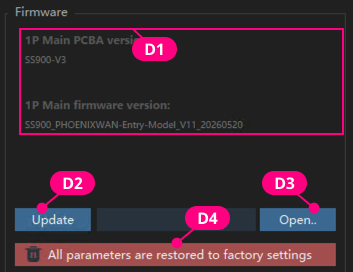
| Item | Description |
|---|---|
| D1 | Displays the current hardware version and firmware version. |
| D2 | Click to flash the firmware. |
| D3 | Click to open the window and select the firmware to be flashed. |
| D4 | Restore all parameters to factory defaults. This will not affect the lifespan of the product. |
4.6 Modes
Section titled “4.6 Modes”4.6.1 PS2 and BLE Mode
Section titled “4.6.1 PS2 and BLE Mode”To use it on PlayStation2, switch to this mode and use it with BE2PS.
To use it with beatmania IIDX ULTIMATE MOBILE, switch to this mode and use it with BE2BT.
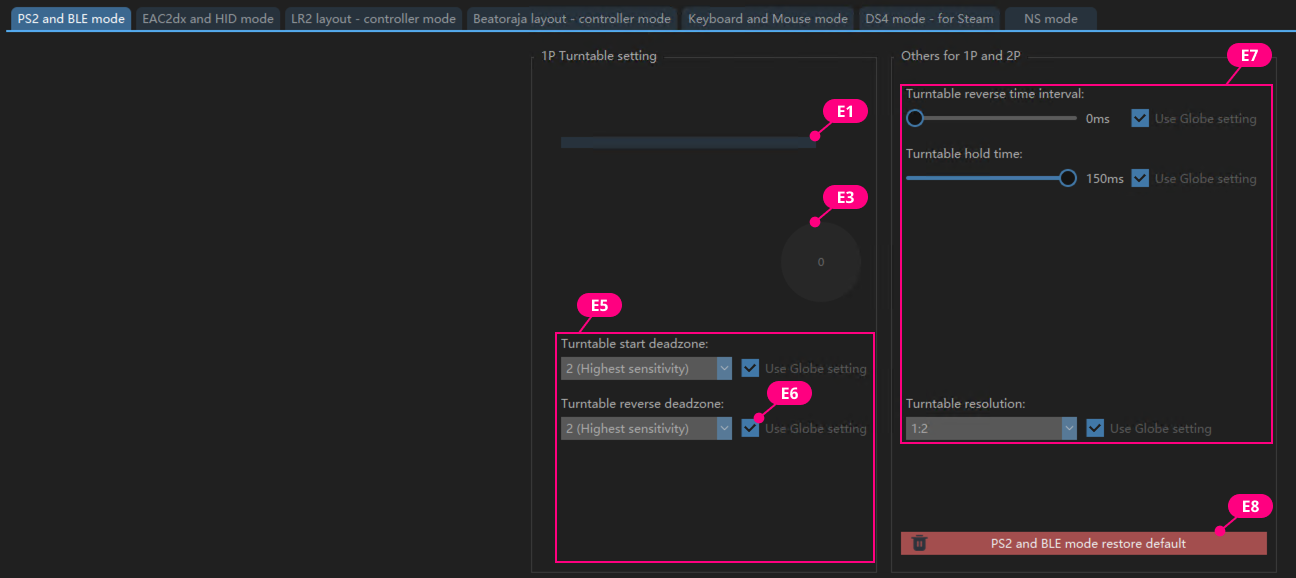
| Item | Description |
|---|---|
| E1 | Displays the absolute value currently output by the turntable X-axis. |
| E3 | Simulates the turntable output in the game. |
| E5 | Independent settings for this mode. |
| E6 | Checked means global settings are used. Unchecked means global settings are ignored and the parameters set in this mode are used instead. |
| E7 | Set other parameters. |
| E8 | Restore the current mode to its default values. |
4.6.2 EAC2dx and HID Mode
Section titled “4.6.2 EAC2dx and HID Mode”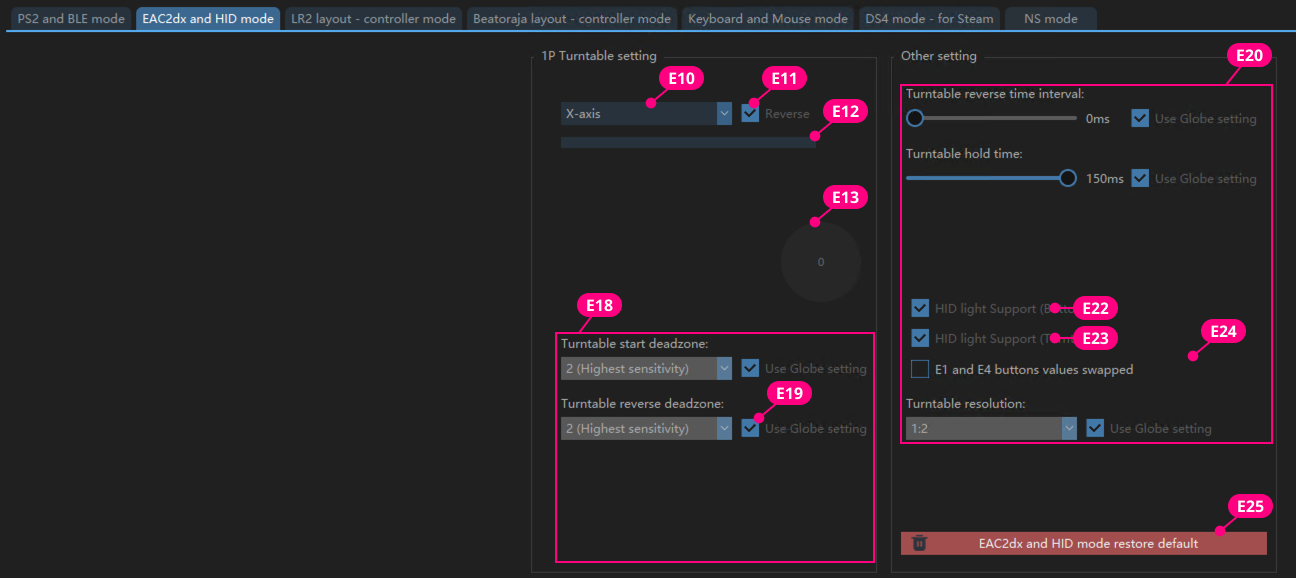
| Item | Description |
|---|---|
| E10 | Specify whether the turntable outputs to the X-axis or Y-axis. |
| E11 | Set the X-axis or Y-axis direction to normal or reversed. |
| E12 | Displays the current X-axis and Y-axis values in real time. |
| E13 | Simulates the output state of the turntable in the game. |
| E18 | Independent parameters for this mode. |
| E19 | Checked means global settings are used. Unchecked means global settings are ignored and the parameters set in this mode are used instead. |
| E20 | Set parameters. |
| E22 | Checked means button light data sent downstream by spiceXXX will be received. Unchecked means the button lights up whenever it is pressed. |
| E23 | Checked means turntable light data sent downstream by spiceXXX will be received. It only supports single color. If you want to use the ring light effect and color specified in IIDXOLLER Options, leave this unchecked. |
| E24 | On INFINITAS, choose either E1 or E4 as the Start button according to your preference. |
| E25 | Restore the current mode to its default values. |
4.6.3 LR2 Mode
Section titled “4.6.3 LR2 Mode”In this mode, the turntable outputs key values and includes special optimization for LR2.
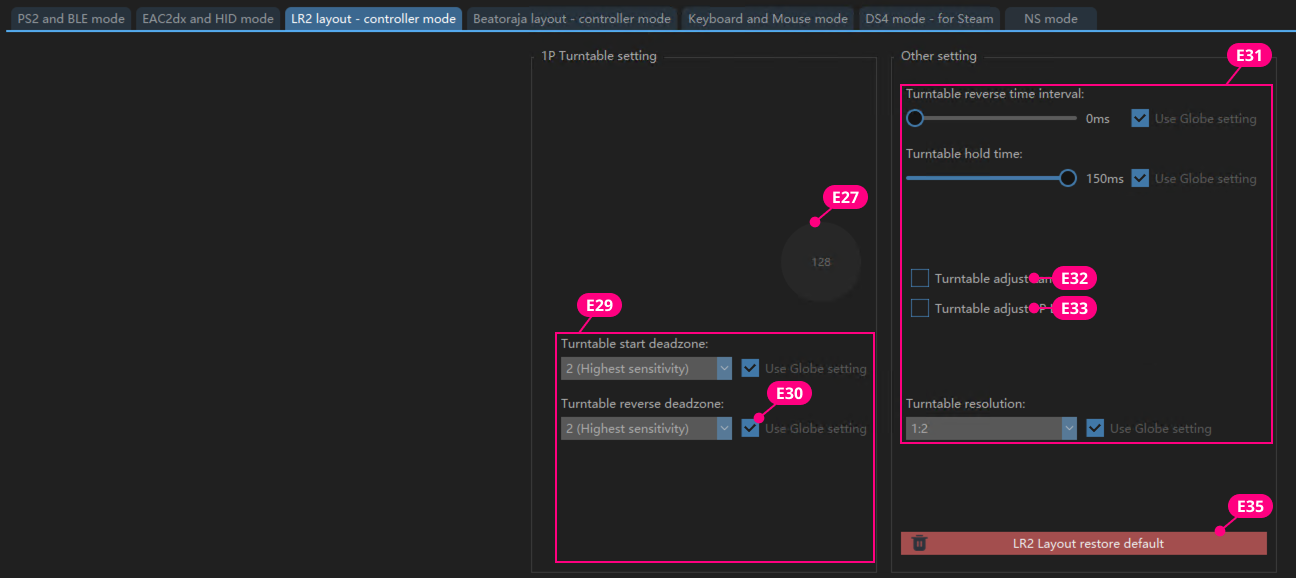
| Item | Description |
|---|---|
| E27 | Simulates the turntable output state in LR2. |
| E29 | Independent parameters for this mode. |
| E30 | Checked means global settings are used. Unchecked means global settings are ignored and the parameters set in this mode are used instead. |
| E31 | Set parameters. |
| E32 | Checked means you can hold E1 and rotate the turntable to adjust LaneCover. |
| E33 | Checked means you can hold E2 and rotate the turntable to adjust LIFT. |
| E35 | Restore the current mode to its default values. |
4.6.4 beatoraja Mode
Section titled “4.6.4 beatoraja Mode”In this mode, the turntable can output key values or Axis output.
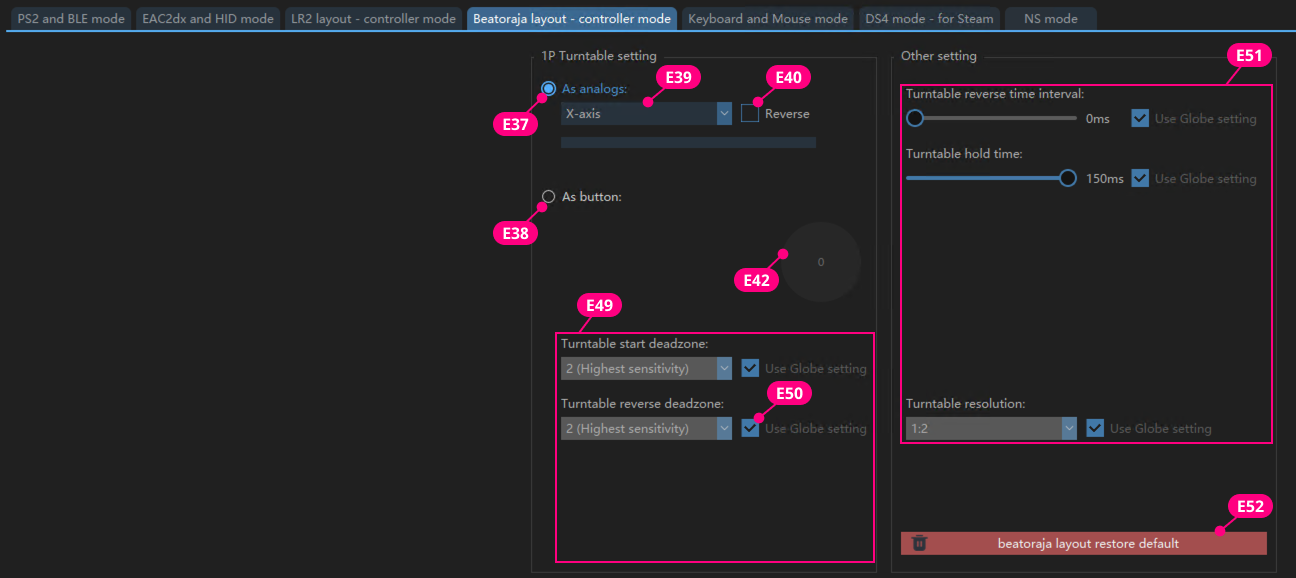
| Item | Description |
|---|---|
| E37 | The turntable outputs analog values. |
| E38 | The turntable outputs two different key values. |
| E39 | Select whether the turntable uses the X-axis or Y-axis. |
| E40 | Set whether the Axis value increases or decreases. |
| E41 | Displays the current X-axis and Y-axis values in real time. |
| E42 | Simulates the turntable output state in beatoraja. |
| E49 | Parameters for this mode. |
| E50 | Checked means global settings are used. Unchecked means global settings are ignored and the parameters set in this mode are used instead. |
| E51 | Set parameters. |
| E52 | Restore the current mode to its default values. |
4.6.5 keyboard & mouse Mode
Section titled “4.6.5 keyboard & mouse Mode”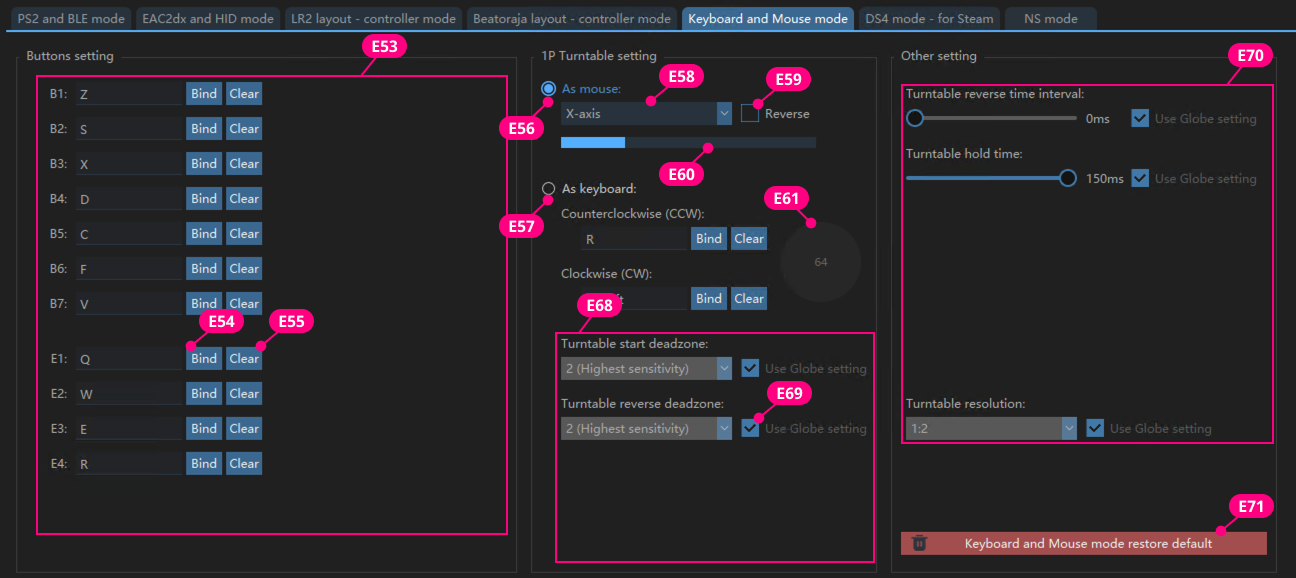
| Item | Description |
|---|---|
| E53 | Customize key values for all buttons. |
| E54 | Click a button, then press a key on the keyboard to complete the custom key binding. |
| E55 | Clear the currently bound key value. |
| E56 | The turntable outputs as a mouse. |
| E57 | The turntable outputs keyboard values. Clockwise and counterclockwise can be mapped to the same keyboard value. |
| E58 | Select whether the turntable uses the X-axis or Y-axis. |
| E59 | Set whether the Axis value increases or decreases. |
| E60 | Preview how the current turntable value increases or decreases. |
| E61 | Simulates the turntable output state in the game. |
| E68 | Parameters for this mode. |
| E69 | Checked means global settings are used. Unchecked means global settings are ignored and the parameters set in this mode are used instead. |
| E70 | Set parameters. |
| E71 | Restore the current mode to its default values. |
4.6.6 PS4 Controller Mode
Section titled “4.6.6 PS4 Controller Mode”In this mode, the simulated output is a DS4 controller, which can be recognized correctly in Steam.
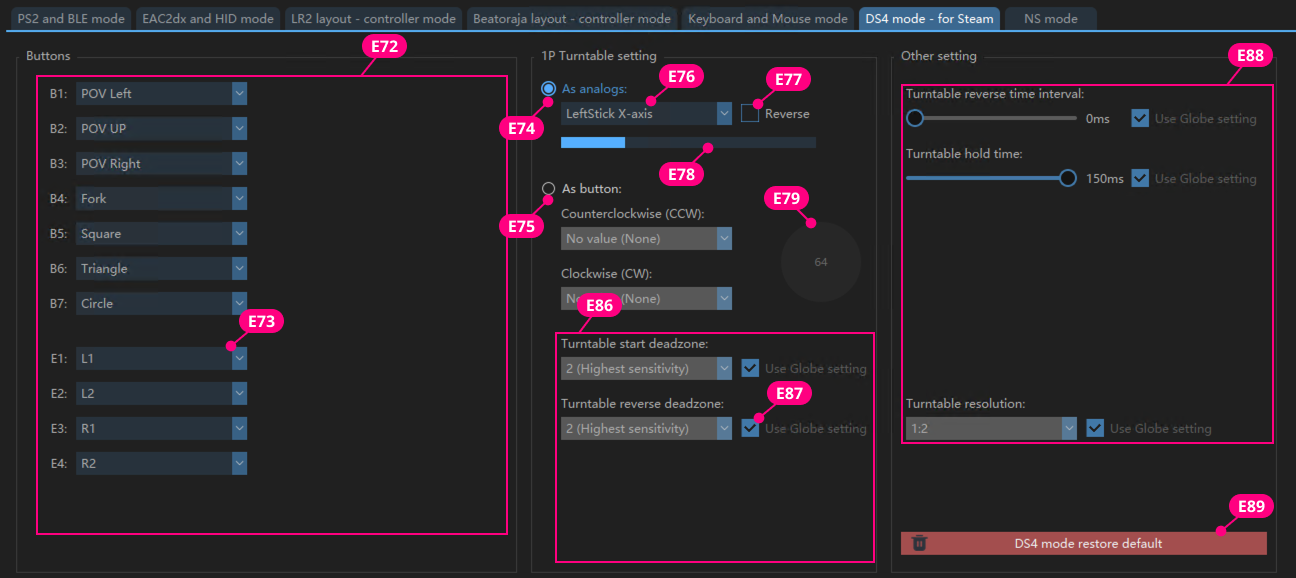
| Item | Description |
|---|---|
| E72 | Customize button values. Any key value in DS4 can be assigned. |
| E73 | Select a key value from the drop-down menu. It takes effect in real time. |
| E74 | The turntable outputs as Axis. |
| E75 | The turntable outputs key values. It can be mapped to two identical key values or two different key values. |
| E76 | Select the corresponding Axis for the turntable. |
| E77 | Set whether the Axis value increases or decreases. |
| E78 | Displays the current Axis value output by the turntable. |
| E79 | Simulates the turntable output state in the game. |
| E86 | Parameters for this mode. |
| E87 | Checked means global settings are used. Unchecked means global settings are ignored and the parameters set in this mode are used instead. |
| E88 | Set parameters. |
| E89 | Restore the current mode to its default values. |
4.6.7 NS Mode
Section titled “4.6.7 NS Mode”This mode will be added in the future.
© 2026 GAMO2 Docs